

Using the Book Feature In InDesign
This is an archived post from Book Design Made Simple.

In October 2026, the website BookDesignMadeSimple.com (founded by Fiona Raven and Glenna Collett) will be closing, and their co-written book will no longer be available for purchase.
While this is incredibly bittersweet news, Fiona and Glenna have generously allowed me to archive their blog posts on Hadley House to avoid having them disappear with their website. You can find all of their archived posts here.
Fiona and Glenna have made a huge impact on my life, teaching me so much about book design and giving me the hope, motivation, and confidence to succeed in this field. I am eternally grateful. It is an honor to learn from them. I think you will feel the same <3
Originally Published: January 9, 2017
By: Fiona Raven
InDesign’s Book feature can be handy! Let’s say you’re working on a book with lots of images and/or chapters. And the file sizes are enormous. In fact, they are so big that you thought it would be smart to divide the book into separate documents for parts or chapters. That’s exactly what we did with Book Design Made Simple. It was more convenient for us to swap smaller sections back and forth than to send the entire book each time. All the parts or chapters were linked together at the end using InDesign’s Book feature. So this blog post explains how to create a Book file, or as we call it, “book” a book.

Getting started with the Book feature
You’ll be gathering several InDesign documents into one Book file to create a book. If you’re just getting started on your chapters, it’s best to design one of your more complex chapters first, then use that chapter as a template for all the remaining ones (i.e., “Save As” Chapter 1, delete all the original chapter’s text, place the Chapter 1 text, and thereby leave the trim size, margins, and styles intact and consistent among all chapters).
If you’ve already created separate InDesign files for your chapters, you can combine them using the Book feature just fine as long as they all have the same trim size. Books look better when margins and styles are consistent throughout, but it’s not a requirement. The Book feature will allow you to synchronize styles throughout all your booked documents, but again, it’s not a requirement, and it doesn’t happen automatically.
Creating a Book file
Now that you have separate InDesign documents for each part or chapter in your book, you’ll combine all the documents using the Book feature. Here’s how:
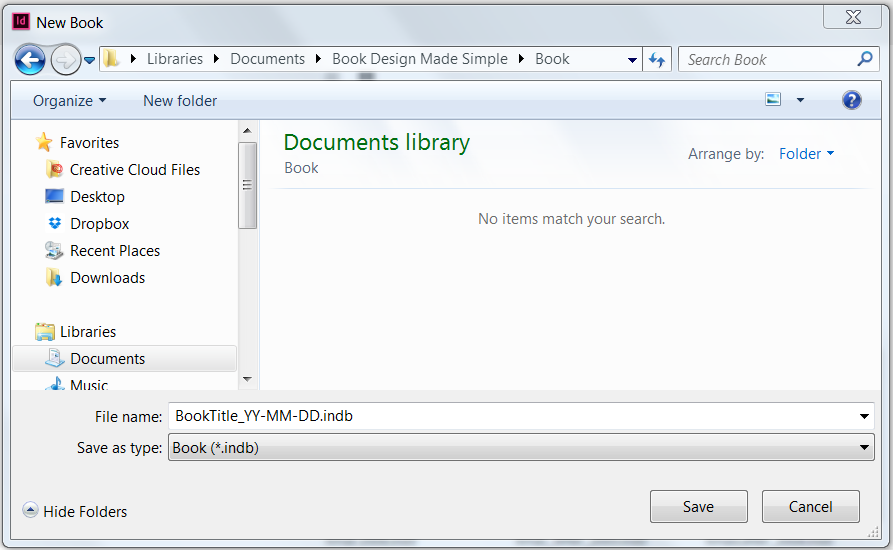
In InDesign, click File>New>Book to get the New Book dialog box. Navigate to a place to save your Book file (perhaps in the same folder as your chapters), type a title for your Book file in the File Name box, and click Save. (Note that your Book file has an .indb file extension.)
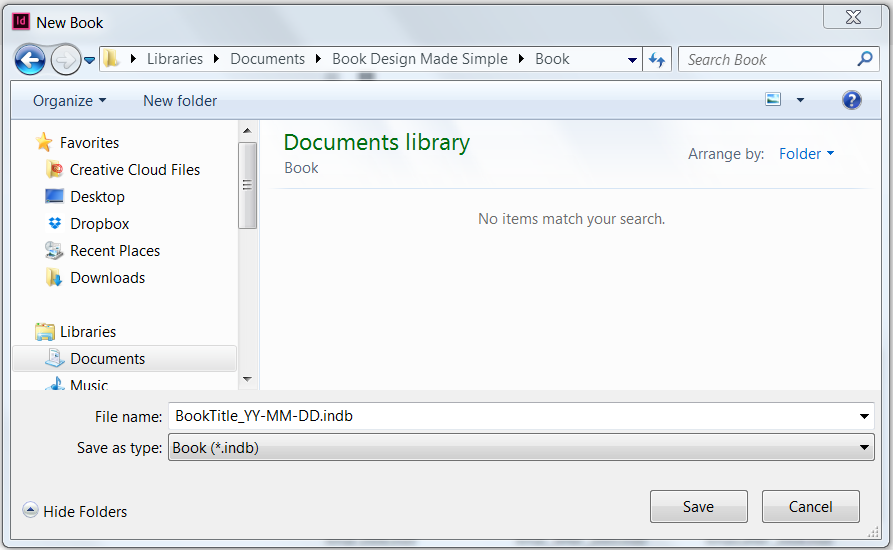
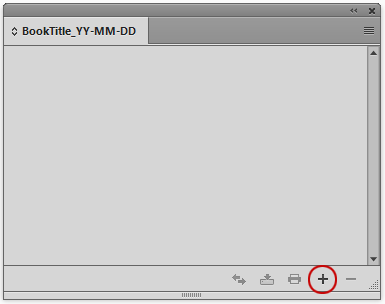
Now you’ll see your new Book file within a panel with its file name at the top:
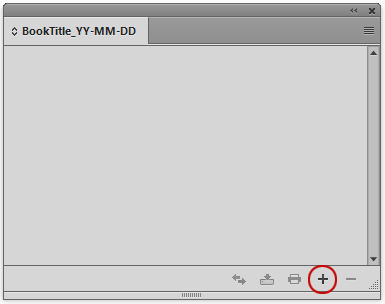
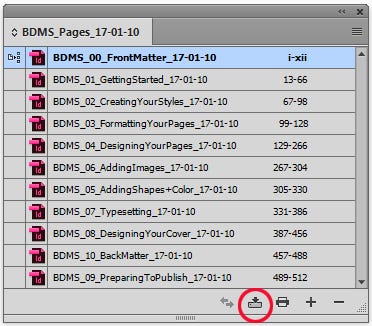
Click the plus sign at the bottom of the panel to open the Add Documents dialog box. Navigate to your chapter documents and select them all at once (select the first one, press Shift, then select the last one), then click Open. Now the documents will all be shown in your Book file. Save the Book file by clicking the Save the Book icon at the bottom of the panel (second from the left). Here is what our Book Design Made Simple panel looks like:
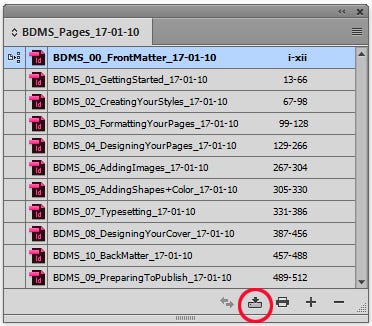
You’ll see the page numbers for each document to the right. In the example above, the documents are not in the correct order, and the page numbering for Chapter 1 should begin with number 1. Your documents might not be in the correct order or be numbered properly.
To get the documents in your Book file in the right order, simply select a document and drag it up or down to the correct position. And setting up automatic page numbering is explained below. Remember to save your Book file (see Step 3 above) after you make any changes.
Opening documents within the Book file
Each time you work on a document in your Book file, it’s best to open your Book file first, then double-click the document to open it within the Book file. That way, the Book file remains up to date. If you work on a document outside of the Book file, the Book file will show an error symbol next to that document. If that happens, just double-click the document in the Book file to open it and re-save it to get rid of the error. And after you’ve saved your documents, remember to save your Book file too.
Adding the Book file panel to your docked panels
You’ll notice when you’re working on a document in InDesign that your Book file panel will remain in front of the document and it can get in the way. If so, drag the panel over to the dock at the right of your screen to dock it with the other panels.
Using the Book feature
Once your Book file is set up, it’ll dynamically link all the documents in your Book file to easily perform a number of functions. We’ll explain the most useful functions:
synchronizing page numbers
synchronizing styles
generating automatic tables of contents
packaging the book for print
creating a single PDF of the whole book
Synchronizing page numbers
There are two ways to number the pages using the Book feature: manually or automatically. If you’ve set the starting page number in each document manually, those page numbers will appear in your Book file. There are, however, advantages to numbering your pages automatically. For example, say you decide to add a few pages to a chapter, or change your mind about the order of the chapters. With automatic page numbering, your Book file will adjust the page numbers accordingly whenever you make changes that affect the page numbering.
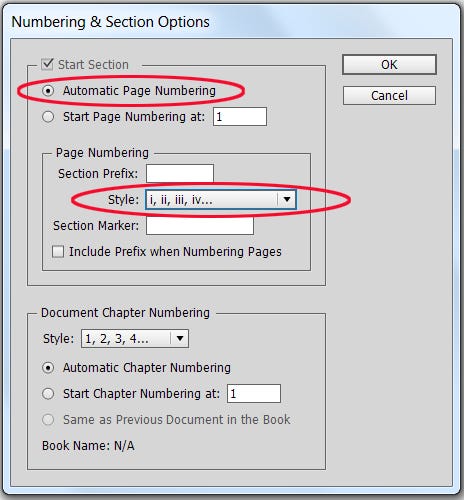
Page numbering is set within each document (see Book Design Made Simple, page 245). To set your page numbering to automatic, start by opening the document containing your front matter. Your front matter will have a separate page numbering system from the rest of your book, using lowercase roman numerals. Go to the Pages panel, click on the thumbnail image of the first page to highlight it, then click Numbering & Section Options in the Pages fly-out menu. Select Automatic Page Numbering at the top, and lowercase roman numerals in the Page Numbering Style drop-down menu, as shown below. Click OK, and all the pages in the document will now be numbered with lowercase roman numerals starting with number i.
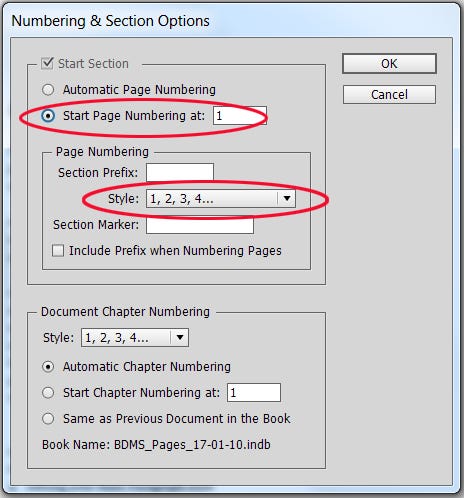
Next double-click your document for Chapter 1 in the Book file to open it. In your Chapter 1 document, you’ll manually start the page numbering at page 1, and switch from lowercase roman numerals to arabic numerals. So go to the Pages panel, click on the thumbnail image of the first page of the document to highlight it, then click Numbering & Section Options in the Pages fly-out menu. Select Start Page Numbering at, and type 1 in the adjoining box. Then select arabic numerals in the Page Numbering Style drop-down menu, as shown below. Click OK, and all the pages in the document will now be numbered with arabic numerals starting with number 1.
Finally, open each remaining document in your Book file, go to the Pages panel, click on the thumbnail image of the first page of the document to highlight it, then click Numbering & Section Options in the Pages fly-out menu. Select Automatic Page Numbering at the top, and arabic numerals in the Page Numbering Style drop-down menu, as shown below, and click OK.
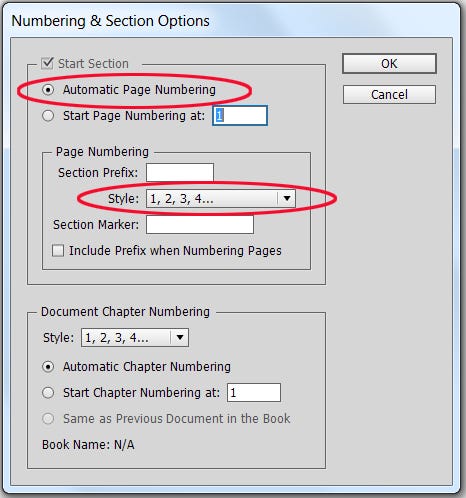
When automatic page numbering has been set in all the documents except Chapter 1, the page numbers will show correctly in your Book file. If you move a document within the Book file (by dragging it up or down), you’ll see that the page numbering will adjust accordingly. Remember to save your Book file after making any changes.
Synchronizing styles using the Book feature
You’ll see in the Book file shown below that the left column contains a symbol in one of the rows called Indicates the Style Source. It means that the document in that row contains the styles that govern all the documents in the Book file if you choose to synchronize the styles. Synchronizing styles using the Book feature will synchronize your paragraph styles, character styles, object styles, and color swatches.
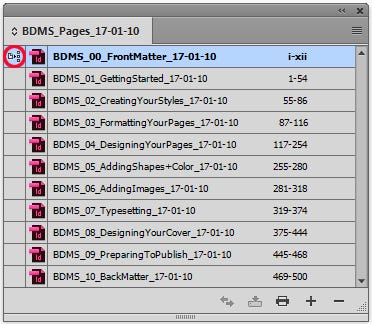
Suppose you’ve made some changes to the styles or swatches in your chapter 5 document, and now you want to use those updated styles or swatches throughout your book. Click in the column to the left of chapter 5 to set chapter 5 as your book’s style source. Select all the other documents that you want to synchronize to chapter 5 by pressing Ctrl/Cmd and clicking the documents (they’ll turn blue when selected).
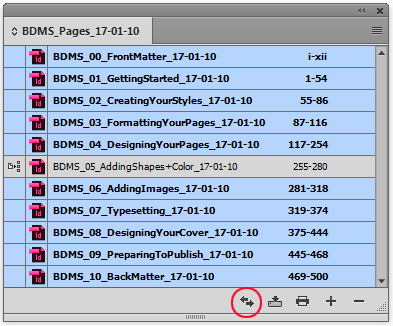
Then click the Synchronize Styles icon at the bottom of the panel (the icon on the left), and InDesign will update all the styles and swatches. (Click here for a more detailed article about synchronizing styles using the Book feature.)
Generating an automatic table of contents
Generating an automatic table of contents is explained in Book Design Made Simple on pages 240–244, and the process is just slightly different when you’re using the Book feature. Your table of contents will be included in your front matter document, so open that document and click Layout>Table of Contents to open your Table of Contents dialog box (see our example below). Note that at the bottom left of the dialog box, the box called Include Book Documents is checked. That is the only difference when working in a Book file!
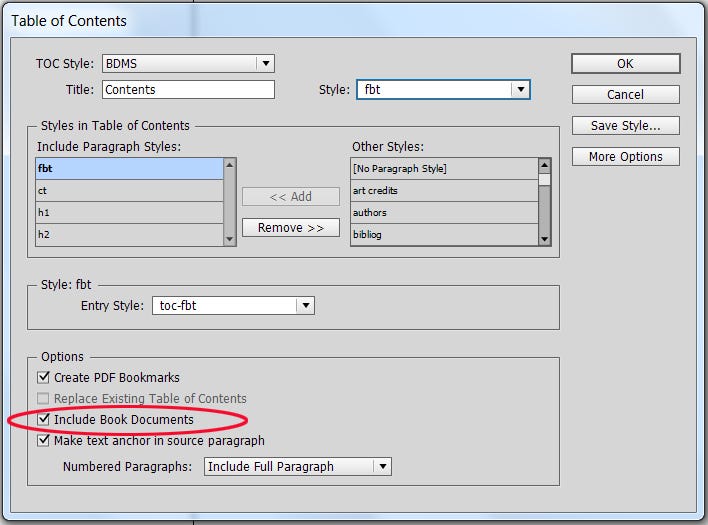
So set up your Table of Contents dialog box to gather the paragraph styles you want to include (part titles, chapter titles, and perhaps main headings), then make sure the Include Book Documents box is checked, and click OK.
Packaging the book for print
Another great thing about the Book feature is that it enables you to package all your digital files into one folder—InDesign files, linked images, fonts (if you are using any outside of TypeKit), and your Book file. Chapter 71 in Book Design Made Simple walks you step-by-step through packaging your files for print, and there is only a slight difference when you are working with a Book File: you’ll select all the documents in your Book file rather than just packaging one document.
To package your book, first select all the documents in your Book file by clicking the first document, pressing Shift, and clicking the last document. Now click the fly-out menu at the top of the Book panel, and choose Package Book for Print. InDesign will take a moment to gather all the info it needs, then you’ll see a Package dialog box (click Package after resolving any warnings), a Printing Instructions dialog box (click Continue), and finally the Package Publication dialog box (see below), where you’ll choose a file name and place to save your packaged folder, and then click Package.
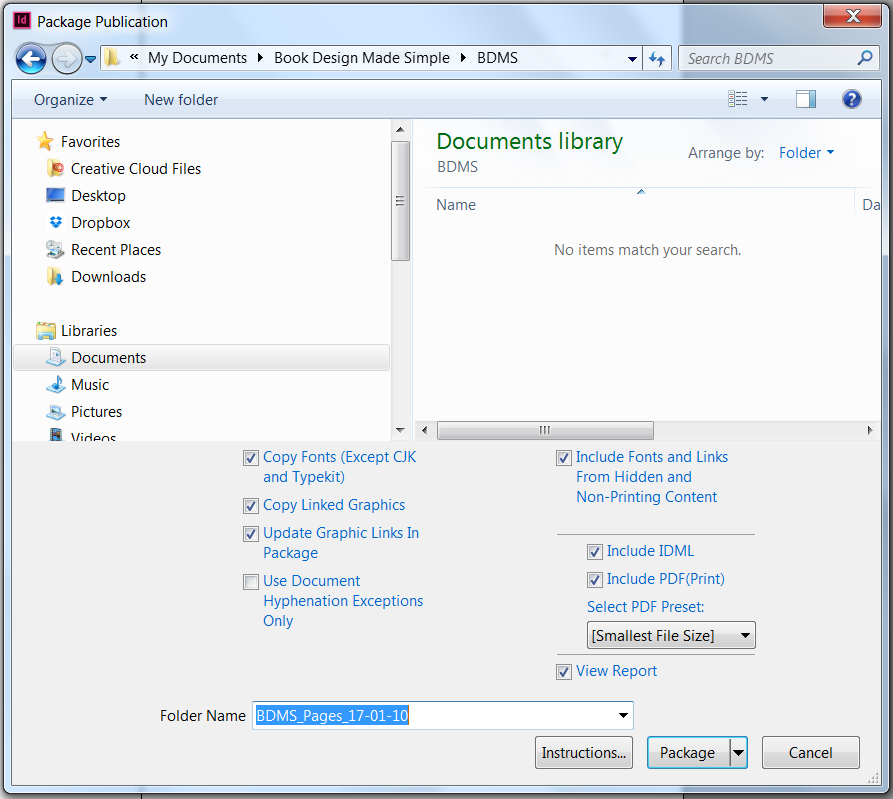
Once your packaged folder is saved, be sure to close the Book file you’ve been working on right away, and open the new Book file in your packaged folder. That is the Book file you’ll be using now.
Creating a single PDF of the whole book
This is where the Book feature really shines! Instead of having to create a PDF of each document within your Book file and combining them into a single PDF in Acrobat, the Book feature allows you to create a PDF of some or all of the documents in your Book file.
Select documents in your Book file by pressing Ctrl/Cmd and clicking the documents, then click the fly-out menu at the top of the Book panel. If you’ve selected all the documents in your Book file, you’ll see Export Book to PDF in the fly-out menu, and if you’ve only selected some of the documents, you’ll see Export Selected Documents to PDF instead. Click the option you see, and InDesign will present the same Export dialog box you normally get when exporting to PDF in InDesign. Choose your file name and options, click Export, and voila!
We hope this tutorial makes book production easier for you!