

Using InDesign Keyboard Shortcuts
This is an archived post from Book Design Made Simple.

In October 2026, the website BookDesignMadeSimple.com (founded by Fiona Raven and Glenna Collett) will be closing, and their co-written book will no longer be available for purchase.
While this is incredibly bittersweet news, Fiona and Glenna have generously allowed me to archive their blog posts on Hadley House to avoid having them disappear with their website. You can find all of their archived posts here.
Fiona and Glenna have made a huge impact on my life, teaching me so much about book design and giving me the hope, motivation, and confidence to succeed in this field. I am eternally grateful. It is an honor to learn from them. I think you will feel the same <3
Originally Published: January 26, 2020
By: Glenna Collett
You can save a lot of time using InDesign keyboard shortcuts. Many users find that they work faster on their keyboard than with their mouse or trackpad. Does that sound like you? Read on to learn how to use this very handy function for applying styles in InDesign.

InDesign comes with a lot of keyboard shortcuts of its own—they appear right next to the items in just about every menu in the application. (Many of the most commonly used ones are listed at the back of Book Design Made Simple.) There are hundreds of preset shortcuts and you’ll see how to find a list of them below.
I’ll show you how to add your own custom shortcuts for steps that you repeat when applying styles to your book’s text or objects. For instance, you probably find yourself applying certain styles (tx, tx1, h1, etc.) dozens of times in the course of an hour. You select text, then you go to your Paragraph or Character Styles panel, find the style you want to use, and click on it with your mouse or on your trackpad. Forget that! You can work more efficiently with keyboard shortcuts.
Setting up InDesign keyboard shortcuts for styles
In the past (before InDesign CC2020), your computer needed a numeric keypad to work the keyboard shortcut magic. But now—ta-da!—that is no longer true, so your laptop is also good to go.
To set up an InDesign keyboard shortcut for a character or paragraph style (or an object, table, or table cell style), first open the appropriate panel. Double-click to open the style you want to apply the shortcut to. Then go to the General tab and insert your cursor in the Shortcut field. Assign a shortcut by using any combination of the following keys:
on a Mac, press Cmd and/or Shift and/or Opt
on a PC, press Ctrl and/or Shift
plus a single number on the numeric keypad (on both Mac and PC)—with the NumLock key set to On on a PC
See the example below. According to my calculations, using these combinations could give you a maximum of 70 shortcuts on a Mac and 30 on a PC.
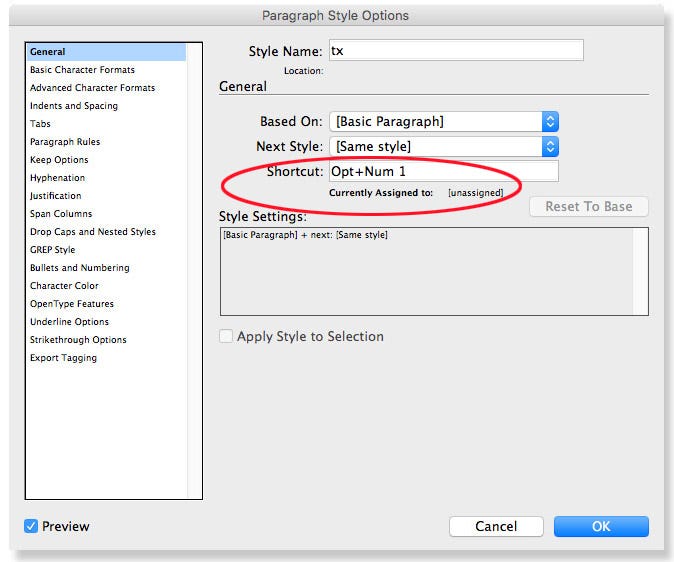
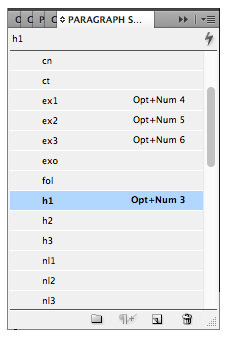
You’ll see that your new custom shortcuts appear in the styles panel. If you’re going to design other books, I suggest using the same shortcuts in all of them—this makes them easier to remember.
Keeping track of InDesign keyboard shortcuts
If you set up too many shortcuts, you probably won’t remember them all! So don’t overdo it. Assign shortcuts only for the styles you use the most, and use your mouse or trackpad for everything else.
Custom InDesign keyboard shortcuts for styles
To keep track of the shortcuts you’ve invented, just write them down. Or take screen shots of the appropriate style panels. Or memorize them.
Preset InDesign keyboard shortcuts for everything else
If you want a list of InDesign’s preset keyboard shortcuts, it’s pretty simple to do. Here are the steps:
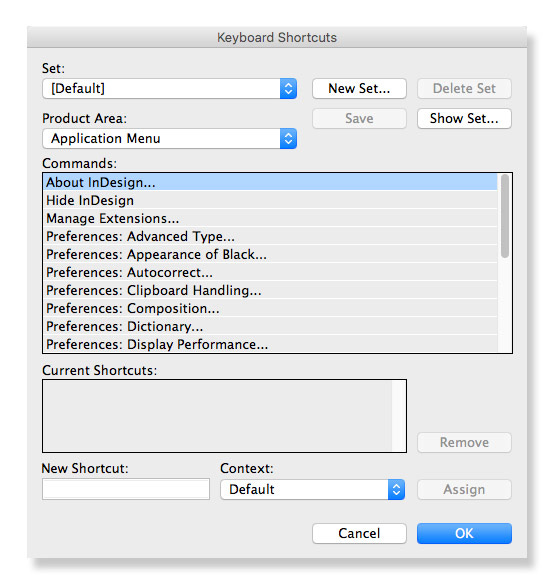
In InDesign, go to Edit>Keyboard Shortcuts and select Show Set.
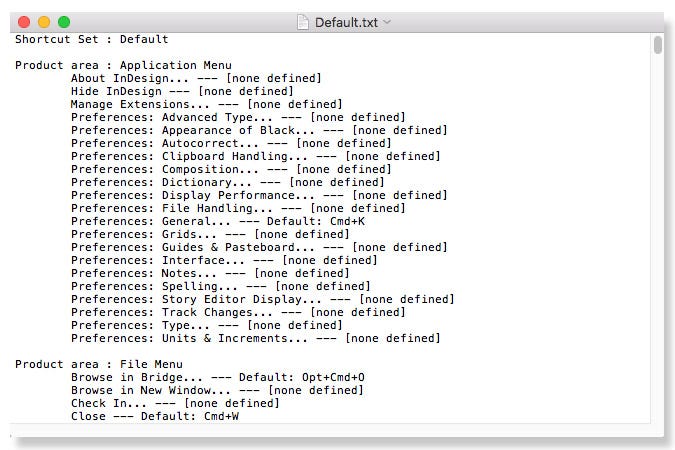
A text file will appear on your screen, in your computer’s default text editing application. You can see from the example below that most of the shortcuts are undefined, meaning that Adobe has not given the function a keyboard shortcut. There are over 1700 functions that could use shortcuts!
Start a new InDesign document.
Select the entire shortcuts list (Ctrl/Cmd + A) and copy (Ctrl/Cmd + C) and paste it (Ctrl/Cmd + V) into your new doc. You don’t need to make the entire list visible by adding pages and using text threads. Just a few pages should be enough.
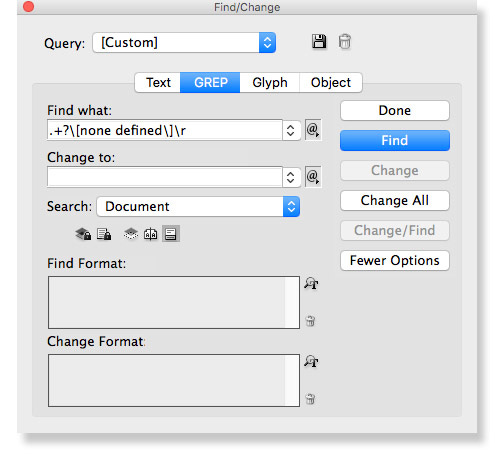
With the cursor in the first line of the list, open the Find/Change dialog box (Edit>Find/Change, or Ctrl/Cmd+F). Click on the GREP tab, then type the following into the Find what field: .+?nonedefined\r (see below).
Leave the Change to field blank. Click Find Next (or Find in older InDesign versions), then Change All. This immediately eliminates all the functions without shortcuts.
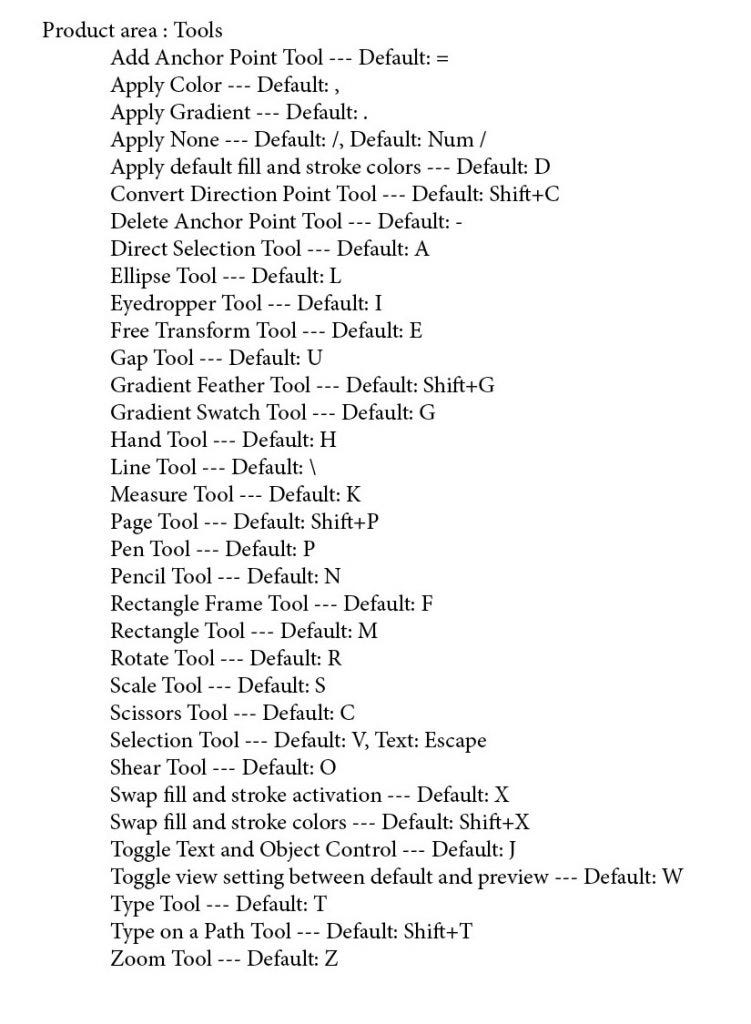
You’ll see that the remaining functions are sorted into categories. Search (Find/Change) for ones you’re most interested in, such as the list of tools and their shortcuts (below), or keep the entire list on hand. Find a single keyboard shortcut simply by looking at the item in a menu or panel, or by hovering over a tool with your mouse.
Will you use this new skill?
Yes! For almost everyone, keeping fingers on the keyboard is quicker than using a mouse or trackpad. Once you catch on to the power of your own custom InDesign keyboard shortcuts for styles, you’ll never look back.