

Text Variables in InDesign: Why and How
This is an archived post from Book Design Made Simple.

In October 2026, the website BookDesignMadeSimple.com (founded by Fiona Raven and Glenna Collett) will be closing, and their co-written book will no longer be available for purchase.
While this is incredibly bittersweet news, Fiona and Glenna have generously allowed me to archive their blog posts on Hadley House to avoid having them disappear with their website. You can find all of their archived posts here.
Fiona and Glenna have made a huge impact on my life, teaching me so much about book design and giving me the hope, motivation, and confidence to succeed in this field. I am eternally grateful. It is an honor to learn from them. I think you will feel the same <3
Originally Published: January 7, 2019
By: Glenna Collett
What the heck is a text variable, anyway? It’s copy that you can add anywhere in your document—but it varies depending on the context. For instance, you could set up your document to automatically insert the current date in a header. Or if you need to send readers to the last page, a text variable will automatically update the page number reference if you add or delete pages later.

Now think how useful text variables could be as navigational tools (i.e., running heads) in a nonfiction book. They can make the current chapter number and chapter title appear—presto!—on verso pages and the most recent internal heading appear on recto pages. And that’s exactly what I’m going to demonstrate in this article. Adobe’s official user guide instructions on the topic of text variables are a bit sketchy, so I’ve developed a detailed lesson for you.
In chapter 52 of Book Design Made Simple, we explain how to create a separate parent (previously called master) page for each chapter in your book. But with text variables, you can use A-Parent (previously A-Master) for all your chapters instead, as demonstrated below. It’s simpler and less cumbersome.
How to create text variables
Before working with text variables, set up your book’s paragraph and character styles. They don’t have to be final; for now, at least assign a style name to each element. (You may change the styles later on.) Once you’ve done that, you can define (create) the text variables, which means to set up what you want the variable to say. We’ve developed a sample book to use for this exercise. Below you can see what a chapter opening page looks like, with our paragraph style names labels in red.
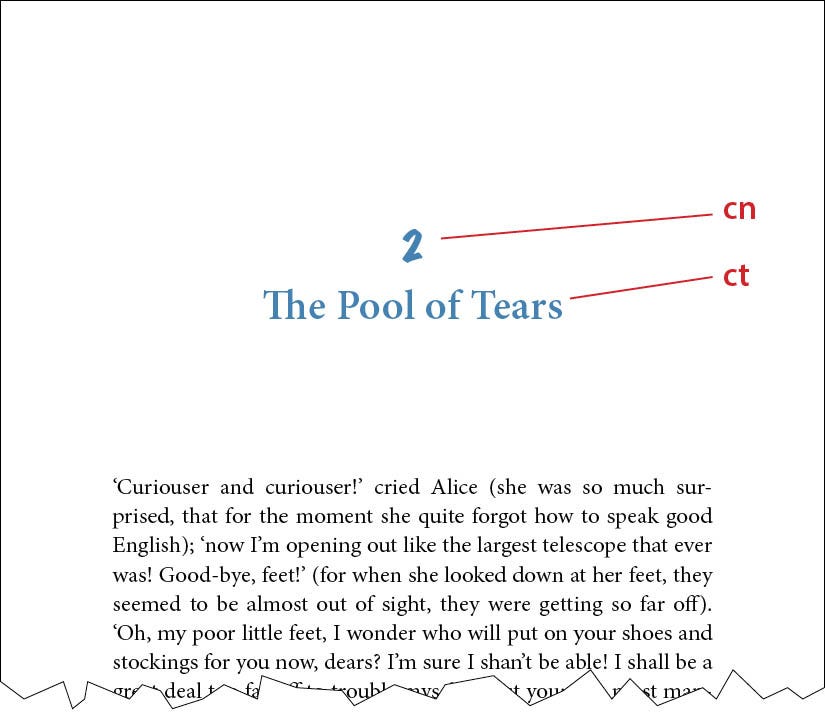
Chapter number text variable
To define the chapter number as a text variable to use in your verso running head, do the following:
Put your cursor in any chapter number.
Go to Type > Text Variable > Define.
Select New.
Use the settings shown below. The “Type” category indicates the way you are going to use the text variable, not the kind of copy that it is now—so select Running Header (Paragraph Style). You can add text before or after the number in your running heads; for instance you might want to add “Chapter.”
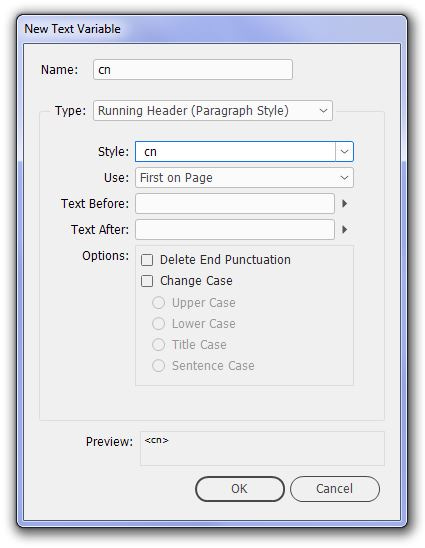
Click OK.
Chapter title text variable
Next you’ll define the chapter title text variable for use in verso running heads just after the chapter number.
Put your cursor in any chapter title.
Go to Type > Text Variable > Define.
Select New.
Use the settings shown below. In this example we decided to add 3/4 of an em space between the chapter number and the chapter title. Because this equals an en space plus a quarter space, the final result in the Text Before field becomes ^>^4.
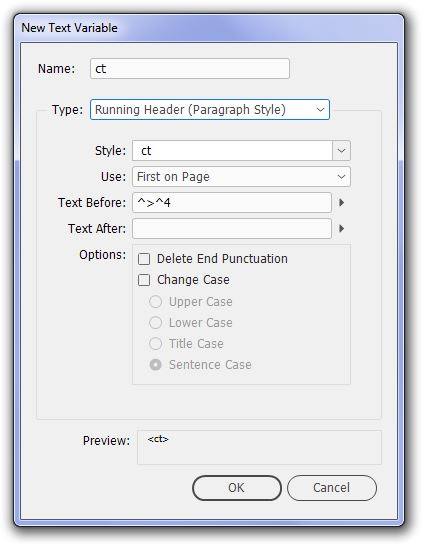
Click OK.
Internal heading text variable
Now you want to make your recto running heads show the latest internal heading of the current spread. In our sample book we call these h1 heads, shown below. (Notice that there are no running heads on the pages yet.)
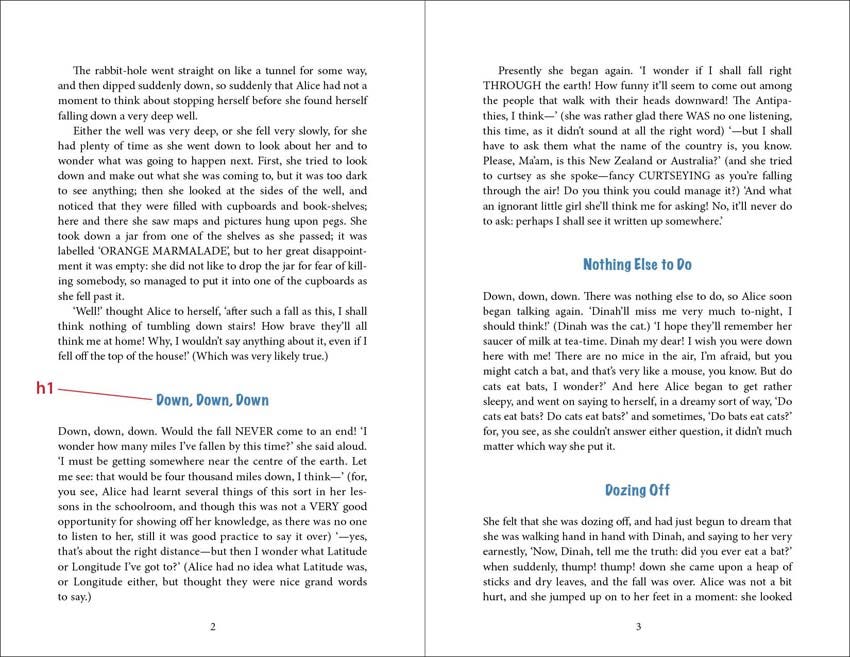
Define the text variable the same way as for chapter numbers and chapter titles. In the Use field, select Last on Page in order to make the head read “Dozing Off” and not “Down, Down, Down.” See below:
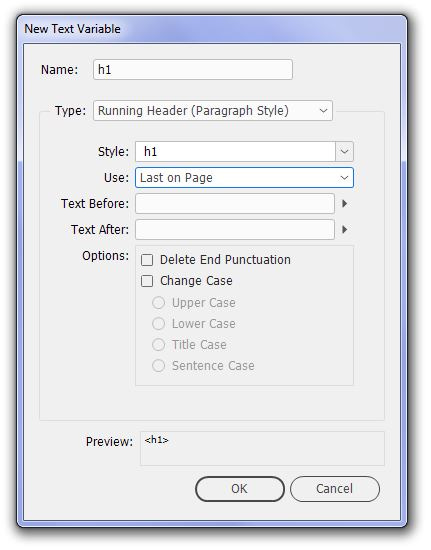
By the way, if there’s no heading on the next spread(s), the running head will continue to read “Dozing Off” until a new heading appears.
Going a bit further
What if you don’t want to include your entire chapter title or heading in the running head? InDesign guru David Blatner has pointed out a sophisticated but simple way to create text variables that exclude unwanted parts of your chapter number or title, such as dashes or extra words. Check out his instructions in InDesign Secrets. Thank you, David!
How to apply your text variables
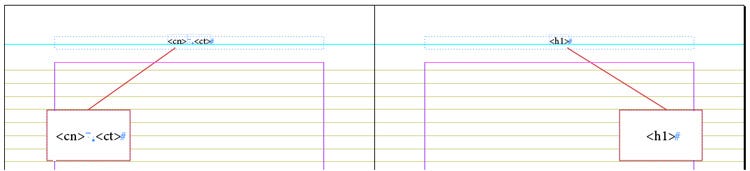
Now that you’ve defined your text variables, you’ll be eager to try them out in your running heads. First make the text frame for the running heads on your Parent (Master) pages, and paragraph styles for them. Then put the cursor in each text frame and insert the text variables by going to Type > Text Variables > Insert Variable, and choose the one you created a moment ago. If you’re using two in the same running head, as in our example, keep your cursor in place and complete the step a second time. Here’s approximately what your running head text frames should look like on your Parent (Master) pages:
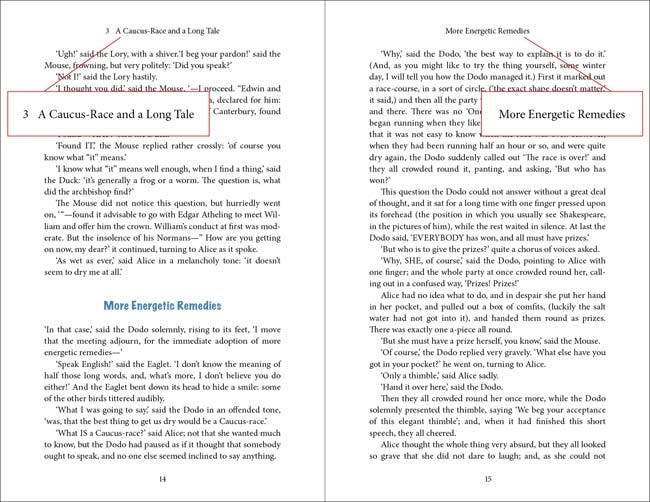
And this is the result on a random text page, in this case in Chapter 3:
If the copy in a chapter title or an internal heading (h1) is too long to fit in the running head text frame, the result will look something like this:

Oops—you’ll have to take out some words to make it fit on one line. With your cursor, delete the text variable on the relevant page(s) and then type in your shortened running head. (In case you’ve forgotten, you can select a glued-in-place parent (master) page item by holding down Shift+Ctrl/Cmd while clicking with the Selection tool or the cursor.)
Other uses for text variables
You can use text variables to refer to chapter numbers or titles throughout your text. And then if you change the number or title of a chapter at some point, the reference in the text will change, too.
You can use a text variable as a placeholder for any recurring copy, such as the title of a companion book that you’re still writing. (When you define the text variable, choose Custom Text in the Type field.) Then once you’ve finalized the companion book’s title, you simply change the custom text of the variable, and bingo—all references to it will be correct.
You can even use text variables to create your table of contents, but it will be complicated. We advocate using the InDesign automatic table of contents feature for that—see pages 240–244 of Book Design Made Simple for detailed instructions.
Before you start, though, you should probably review this video from InDesign Secrets. It shows even more uses for text variables but also cautions you about some limitations to this otherwise great feature.
Automatic page numbers
You could certainly insert automatic page numbers by using text variables. But InDesign has another feature just for this purpose, and it’s simpler to use:
Put your cursor in the text frame you’ve made on one of your Parent (Master) pages for your folio (page number).
Go to Type > Insert Special Character > Markers > Current Page Number.
The letter A will appear in the folio text frame, assuming that you’re in your A-Parent (A-Master) page. (B will appear on your B-Parent (B-Master) page, etc.)
Repeat the procedure for the folio on the other parent (master) page in the spread.
And you’re done. All of your pages based on Parent (Master) page A will show the current page number. How easy was that?
* * *
I would like to thank Anne-Marie Concepcion of InDesign Secrets for pointing out this wonderful feature that has been a part of InDesign just about forever but that was new to me. As soon as I heard about it, I just had to find out more and share it with you.