

Optical Margin Alignment
You can easily make your typesetting look more sophisticated with hanging punctuation—InDesign's optical margin alignment.

In October 2026, the website BookDesignMadeSimple.com (founded by Fiona Raven and Glenna Collett) will be closing, and their co-written book will no longer be available for purchase.
While this is incredibly sad news, Fiona and Glenna have generously allowed me to archive their blog posts on Hadley House to avoid having them disappear with their website. You can find all of their archived posts here.
Fiona and Glenna have made a huge impact on my life, teaching me so much about book design and giving me the hope, motivation, and confidence to succeed in this field. I am eternally grateful. It is an honor to learn from them. I think you will feel the same <3
This is an archived post from Book Design Made Simple.
Originally Published: February 13, 2018
By: Glenna Collett
Some InDesign functions have names that you would never be able to guess, and that makes them really tough to discover and learn. One of these is Optical Margin Alignment (I’m calling it OMA), which is InDesign’s formal name for hanging punctuation. I used to see this effect in other people’s work and then try to imitate it, but I couldn’t because I had no idea what it was called. So this article explains what it is and how to do it.

What optical margin alignment looks like
Optical margin alignment (hanging punctuation) allows you to show quotation marks, bullets, and hyphens outside the normal text area—a bit similar to a hanging indent. Take a look at the left sides of these two text blocks:
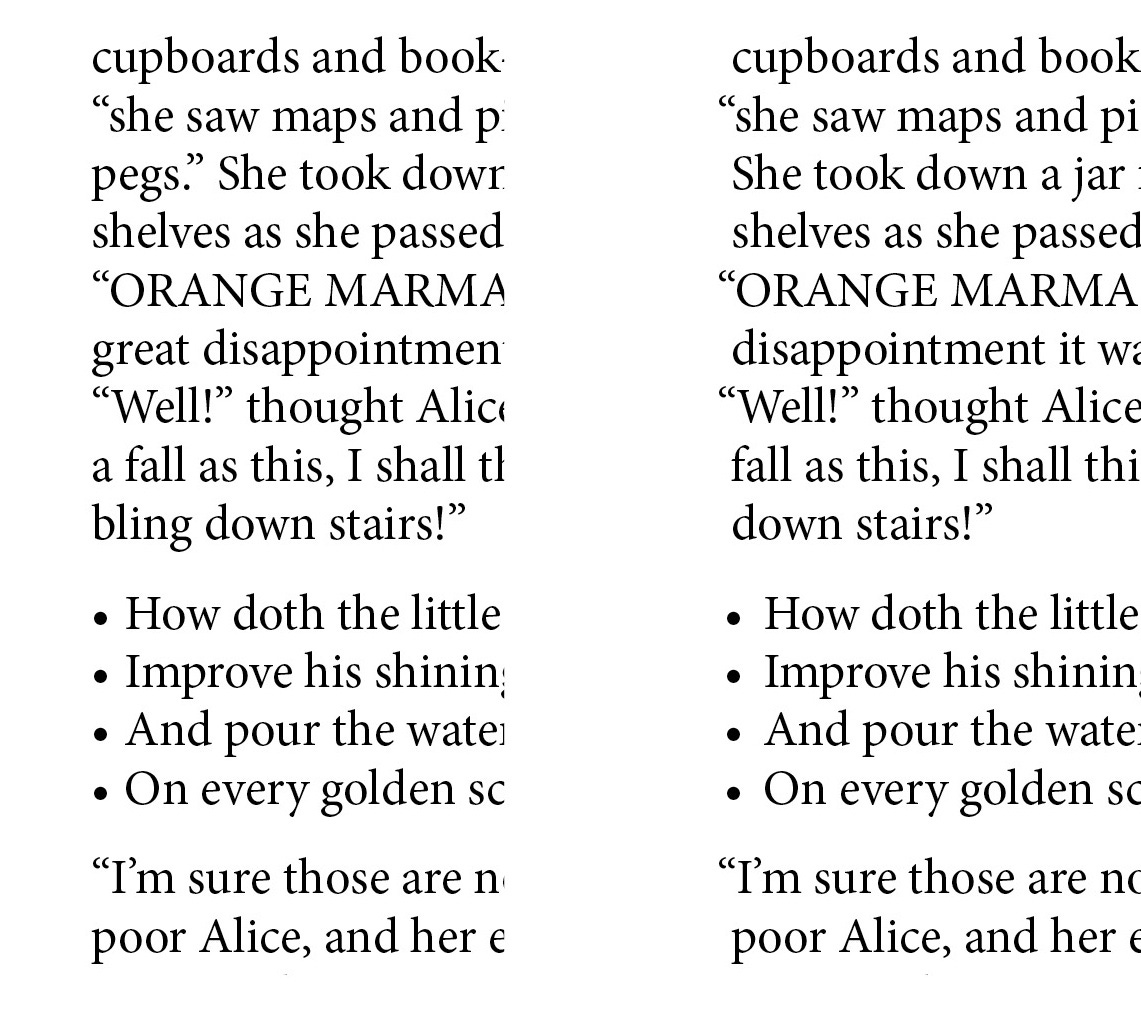
The optical margin is the imaginary line that your eye sees at the left and right edges of the text. (In InDesign, of course, margins and text frames can easily be made visible by simply pressing “w” while nothing is selected.) Some people notice that bullets and quotation marks placed exactly at the left edge make the type appear misaligned. Ditto with hyphens on the right edge. And so it was that hanging punctuation began with the Gutenberg Bible, where you can see large initial letters hanging out on the left and hyphens jutting out to the right of the columns. So if you want to try it, you are in good company. Continue reading.
How to produce optical margin alignment
The method is simple.
Put your cursor anywhere in the story. (A story is all the text—no matter how much or how little—that is threaded together.)
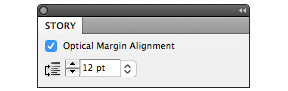
Go to Type>Story, and click in the Optical Margin Alignment check box.
Choose a value. The most moderate, least noticeable value is probably the one that’s the same size as your leading, but go ahead and try other size options till you find the one you like best.
And you’re already almost finished.
Now you’ll notice that every single item in your book (or the current story) that could possibly use OMA is now using it, and this may not be what you intended. Maybe the bullets or numbers in lists are now sticking out too much to the left and bothering you. Or maybe a chapter title starts with a quotation mark and is now looking a little out of alignment. To undo the OMA, simply go into the paragraph style for any element where you want to stop using it. In Indents and Spacing, check Ignore Optical Margin.
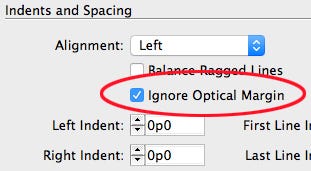
If you are not using OMA at all in your document, you may completely ignore the Ignore Optical Margin box. InDesign’s default mode is not to use it, so just leave it unchecked throughout.
We hope this short article has helped you learn a new typography term and add something a little more sophisticated to your skill set. Now that you know about it, you’ll start seeing it everywhere.