

Live Endnotes in InDesign
InDesign's live endnotes means that when you add or delete an endnote, the numbering adjusts automatically! It's a huge time saver for book designers.

In October 2026, the website BookDesignMadeSimple.com (founded by Fiona Raven and Glenna Collett) will be closing, and their co-written book will no longer be available for purchase.
While this is incredibly sad news, Fiona and Glenna have generously allowed me to archive their blog posts on Hadley House to avoid having them disappear with their website. You can find all of their archived posts here.
Fiona and Glenna have made a huge impact on my life, teaching me so much about book design and giving me the hope, motivation, and confidence to succeed in this field. I am eternally grateful. It is an honor to learn from them. I think you will feel the same <3
This is an archived post from Book Design Made Simple.
Originally Published: November 6, 2017
By: Fiona Raven
Adobe’s InDesign includes a great feature for book designers—live endnotes. Until now, footnotes and endnotes could be imported from Word to InDesign, but only footnotes continued to be live and linked, allowing us to insert and delete them without messing up the numbering system. Now we have the same flexibility with endnotes!
Importing endnotes into InDesign
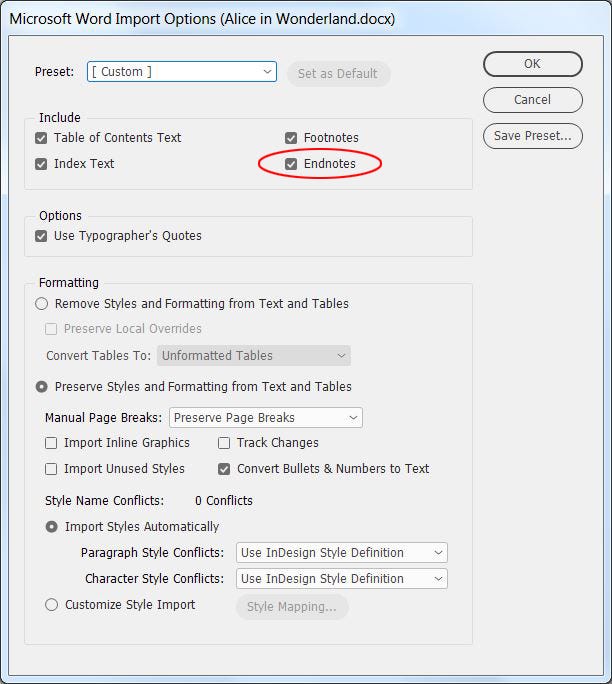
When you place your document in InDesign, make sure you first check Show Import Options in the Place dialog box (see right), and then check Endnotes in your Import Options dialog box as shown below (see pages 44-45, Book Design Made Simple).

When you click OK and then place your text on the first page of your InDesign document, you’ll see the first page of your manuscript flow onto that page. InDesign will place a new, separate text frame containing your endnotes on a new page following any existing pages.
If your document has one page to start with, InDesign will place the endnotes text frame on a new page 2; if your document starts with three pages (following our example on page 34, BDMS), then InDesign will place the endnotes text frame on a new page 4. Before flowing the rest of your manuscript into your pages, drag your endnotes text frame onto the pasteboard for now. You’ll be able to position it appropriately in your book later on.
The InDesign endnotes text frame
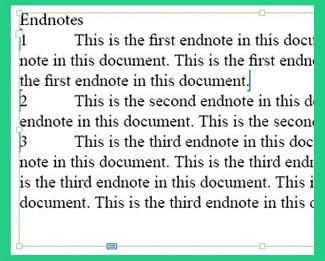
Here’s what your InDesign endnotes text frame will look like:
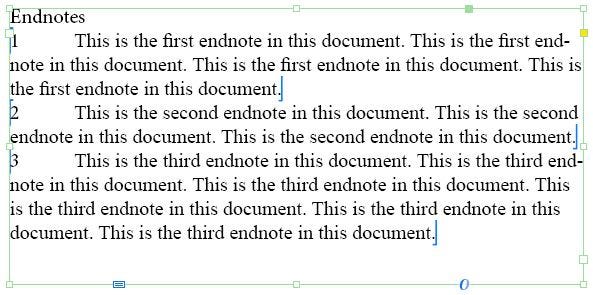
Note the following about the endnotes text and text frame:
Each endnote is enclosed in colored brackets. If you want to make any changes to the text in an endnote, make sure any changes are contained within its colored brackets.
Any text that is not an actual endnote (such as the heading “Endnotes” shown in the example above or any other headings you’d like to add) must be placed outside of the colored brackets.
Along the bottom of the InDesign endnotes text frame, note the box partway along the left side. This indicates that this text frame is specifically for endnotes.
Making the most of live InDesign endnotes
Here’s where this new InDesign endnotes feature really shines! Gone are the days of not being able to insert new endnotes or delete existing ones without messing up the numbering system. Now you can do both easily.
Inserting a new endnote
Place your cursor in the main narrative where you want to insert a new endnote.
Click Type > Insert Endnote. Your cursor will now be positioned at the appropriate place in your endnotes text frame. Simply type in your new endnote.
To get back to your place in the main narrative, click Type > Go To Endnote Reference, and you’ll be back at your original spot.
Voila! All subsequent endnotes are renumbered accordingly, both in the main narrative and in the endnotes text frame.
Deleting an existing endnote
Select an existing endnote reference number in the main narrative.
Press the Delete key to delete both the reference number and the endnote text.
Voila! All subsequent endnotes are renumbered accordingly, both in the main narrative and in the endnotes text frame.
Applying styles to InDesign endnotes
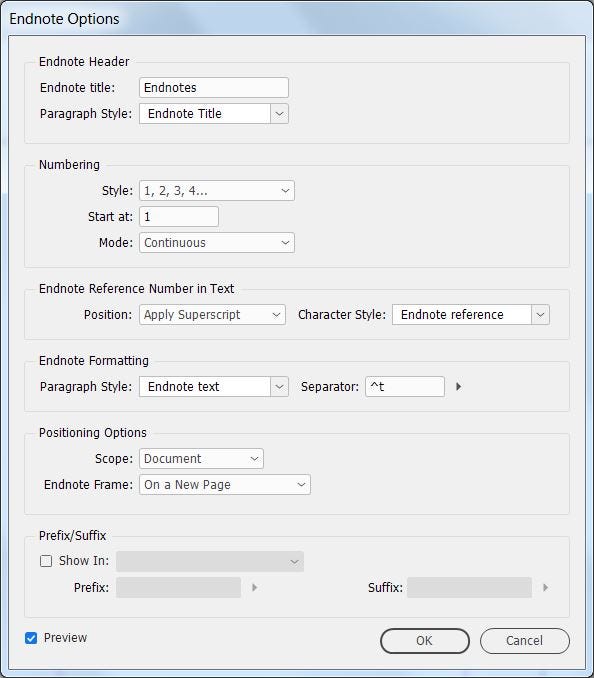
If your endnotes were imported into InDesign from Word, you’ll notice three default styles in your panels: Endnote Title and Endnote Text paragraph styles, and Endnote Reference character style. If you don’t see any endnote styles in your styles panels, create them yourself (or use our specs on pages 85 and 250 of BDMS).
Once your styles are set up, click Type > Document Endnote Options to open your Endnote Options dialog box. Fill out the box as shown below, specifying paragraph and character styles where indicated. (The style names shown below are the defaults imported from Word.) Then click OK to apply all the styles to your endnotes.
Placing the endnotes in your back matter
When you’ve finished typesetting your book, you’ll create an appropriate page or pages in the back matter for your endnotes. When you have a spot ready to go, find your endnotes text frame (it might still be on the pasteboard of page 2 or 4), and cut-and-paste it to the appropriate page in your back matter. Note that the endnotes text frame can be copied- or cut-and-pasted without losing any live links. Isn’t technology grand?
You may want to change or add headings to your endnotes. Endnotes placed in your back matter are entitled “Notes” rather than “Endnotes.” If you choose to add extra headings to show which chapters the endnotes can be found in, be sure to add the headings outside of the colored brackets enclosing the endnotes text.
Enjoy using live endnotes
We waited 18 years (!) to get live endnotes, so were understandably excited when this feature was added to InDesign in 2018. Live endnotes are great and we still don’t take them for granted!