

Is Your Image High Enough Resolution for Printing?
This is an archived post from Book Design Made Simple.

In October 2026, the website BookDesignMadeSimple.com (founded by Fiona Raven and Glenna Collett) will be closing, and their co-written book will no longer be available for purchase.
While this is incredibly bittersweet news, Fiona and Glenna have generously allowed me to archive their blog posts on Hadley House to avoid having them disappear with their website. You can find all of their archived posts here.
Fiona and Glenna have made a huge impact on my life, teaching me so much about book design and giving me the hope, motivation, and confidence to succeed in this field. I am eternally grateful. It is an honor to learn from them. I think you will feel the same <3
Originally Published: August 26, 2015
By: Fiona Raven
How can you determine whether an image file is high enough resolution to use in your book? That’s a question I get asked all the time! Images should be at least 300 ppi (pixels per inch) at the size they’ll be printed at— and that’s where most people need help. How do you figure out the size of an image, and whether or not it’s suitable for printing?
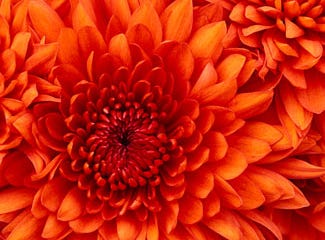
There are two ways to find out whether the resolution of an image is high enough to print at the size you want: using math and using Photoshop (I’ll explain both). But first, a brief explanation of resolution. Every digital image is made up of pixels (squares of color) and the size the image is viewed at determines its resolution. Yes, that’s right: The size your image is viewed at determines its resolution!
Using math to determine maximum printing size
Because images need to be printed at 300 ppi, there’s a quick and easy way to determine the maximum size that an image can be printed at: simply divide the number of pixels in the image by 300. Here’s an example: The image below is 600 by 300 pixels. 600 by 300 divided by 300 = 2 by 1, so the largest size this image can be printed at is 2″ by 1″. That’s not very big!
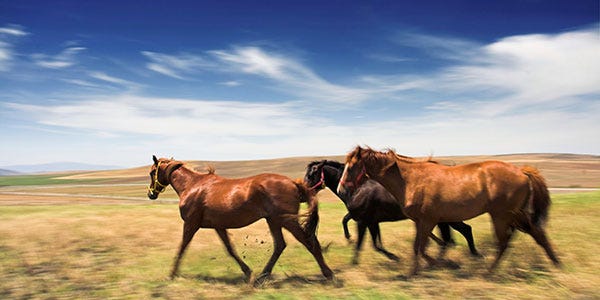
To find out how many pixels are in an image, select the image in Explorer (Windows) or Finder (Mac) and its dimensions will be displayed in pixels. You can then divide the number of pixels by 300 to see the maximum size the image can be used at for printing.
Using Photoshop to determine maximum printing size
Open your image in Photoshop and go to Image>Image Size. You’ll see something like this:
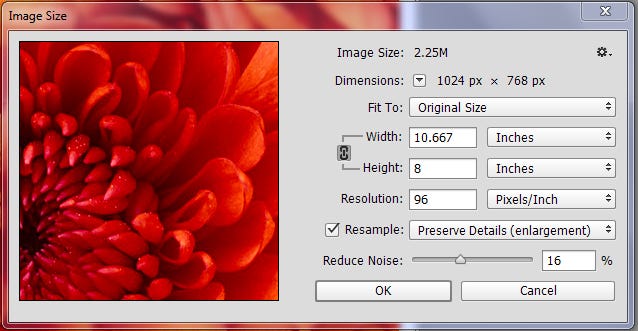
Look at the Width and Height figures. This particular image is approx. 10″ x 8″, but the resolution is only 96 ppi—and for printing it must be 300 ppi. To change the resolution to 300 ppi, uncheck the Resample box to lock the Width, Height, and Resolution, then change the Resolution to 300 ppi, like this:
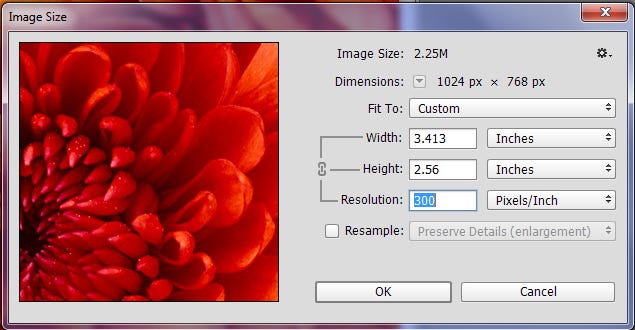
Now you can see how big the image is for printing. In this example, the image (at print resolution) is only 3.4 x 2.5 inches.
Keep in mind: cropping and resampling
What if you intend to crop an image (just use a portion of it)? You’ll need to work out the maximum size the cropped image can be printed at. You can either estimate the number of pixels in the cropped image, or actually crop the image in Photoshop the same way it’ll be cropped in your book, and then check its image size. To crop in Photoshop, choose the Crop Tool and adjust the handles to fit how the image will be cropped, like this:

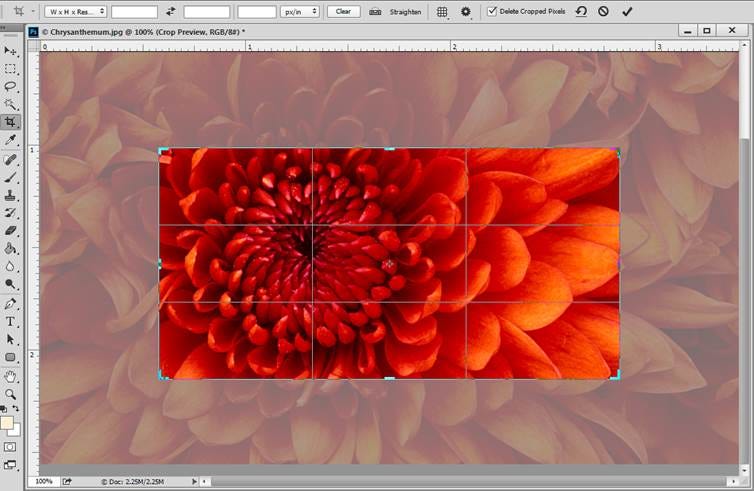
And then hit Enter/Return a couple of times. Now check the image size as described above to see its maximum size for printing.
If the resolution of your image is too low at the size the image will be used (i.e. under 300 ppi), then you can always try resampling the image (setting its resolution and size independently, resulting in some loss of quality). This, of course, is not your first choice, but the image may still be good enough to use after it’s resampled. (That’s a subject for another blog post! And it’s also explained in Book Design Made Simple—chapter 46.)
I hope this helps you to determine whether your image is high enough resolution to print in your book.