

Ebook Conversion Checklist: Accessible EPUBs from InDesign (Part 1)
A step-by-step guide for designers and publishers to prepare an InDesign file for a reflowable EPUB that preserves the page list and meets accessibility standards.

Hi, friends! In this month’s post, I walk through part (a very small part) of an ebook conversion checklist for reflowable EPUBs created from InDesign.
Ebook conversions can seem deceptively easy, especially with free or very cheap services that promise to create an ebook for you. But if you’ve ever tried to create one, you may have realized they are not as easy as they seem!
And those free/cheap ebook services? Well, maybe your ebook might come out looking visually okay, but it’s quite likely there’s a lot going on under the hood (in the code) that will result in the ebook not being completely accessible and potentially unusable for those who have print disabilities. (And isn’t the whole point of creating an ebook to make your book accessible to a wider audience?)
So, I wanted to create an ebook checklist series to help educate designers and publishers on how to create accessible reflowable EPUBs from InDesign. This checklist is specifically made for reflowable ebooks.
In this post, you’ll learn:
how to prepare your InDesign file for accessible reflowable EPUB export
tips for preserving the page list so the ebook remains accessible and connected to the print book
clean up tiny details that could cause big issues in the ebook
how to use text variables to avoid unlocking parent elements and create a smoother end-to-end workflow
IMPORTANT! Please keep this in mind when prepping for ebook conversion.
When you’re prepping your InDesign file for ebook conversion, one of the biggest priorities is preserving the page list. It’s important to be cautious of text reflow and avoid shifting the pages in any way.
So, for example, if you’ve inserted a Forced Line Break somewhere, and you need to remove it so it doesn’t cause a weird break in the middle of a paragraph in the ebook, that may cause the text to reflow. If text reflows, tracking might be one of your best friends.
Since tracking isn’t preserved in the ebook, you can decrease or increase the tracking to your heart’s content until the text remains the same as it did in the print version (seriously—you can make the words as crunched or as loose as you need them to be to fix that reflow; it will not be retained in the ebook!).
Why is this important, you ask?
The page list is an incredibly useful tool for readers using ebooks, especially in a classroom setting. For example, if a teacher asks the class to flip to page 96, students reading a digital copy of the text can use the page list to navigate to the start of where page 96 is in the print book, so everyone in class will be on the same page.
The page list is incredibly important in preserving the ebook’s accessibility. So, it’s also important to typeset with these considerations in mind (for a smoother end-to-end workflow!). It’s much easier to prep the print book for ebook conversion if it’s been thoughtfully typeset.
Cleaning Up Your InDesign File Before Ebook Conversion
General Cleanup Steps for Ebook Conversion
1 — Find Forced Line Breaks (soft returns) and evaluate whether they should be replaced with End of Paragraph Returns or be retained.
Find/Change (Text):
Find:
^nChange:
^pYou may want to change this to a different character depending on the situation, such as a space.
Find Next > evaluate each instance
Why evaluate each instance?
Think of how the ebook will reflow text depending on the e-reader’s screen size or the different customization options readers have available to them (such as changing font size, line spacing, margins, etc.). If you’d like to retain a line break (say in a chapter title), then keep it there. If the line break was inserted as a typesetting solution (not advised, but there are situations where you might have to use one to get a paragraph to sit right), then you probably don’t want that line break to remain in the ebook, and you may end up with a weird break in the middle of a paragraph.
2 — Find Non-Breaking Spaces and evaluate whether they should be replaced with a regular space that has a No Break character style applied or be retained.
Find/Change (Text):
Find:
^SChange: [space]
Change Format: apply a No Break character style
Find Next > evaluate each instance
Why evaluate each instance?
Non-Breaking Spaces will be retained in an ebook, but spaces with a No Break character style will not be retained. So, if you need to preserve those spaces, use a Non-Breaking Space. If you don’t want those spaces to be retained in the ebook, use a No Break character style.
Technically, you could also just replace the Non-Breaking Space with a regular space, but it’s likely that doing so will cause reflow (thereby affecting the page list). So, using a regular space with a No Break character style applied is a great way to preserve typesetting / avoid reflow.
Note: If there’s another style applied to the surrounding text (such as italic), a regular space may be slightly bigger than a space set in italic. So, again to avoid reflow, I like to create a No Break Italic character style (with Italic and No Break applied) and apply that to spaces where the surrounding text is in italics, for example.
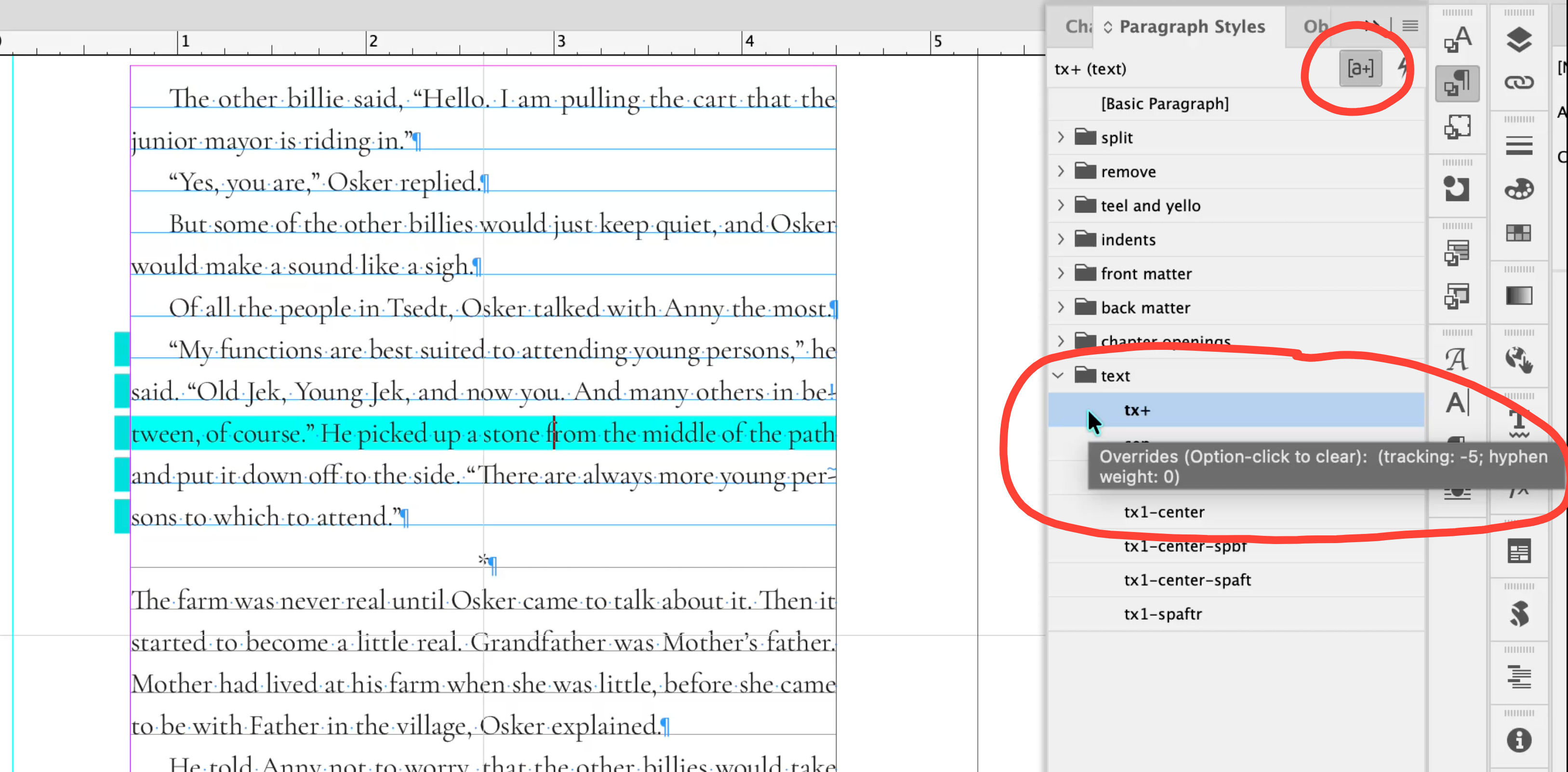
3 — Turn on Style Override Highlighter (found in any Styles panel—[a]) and ensure all overrides are cleared or are acceptable.
Some local overrides (such as Hyphenation and Justification (H&J) settings) can (and should) stay the same. They will not be retained in an ebook, and if you clear these overrides, it will likely cause reflow and alter the page list.
To find what overrides have been applied to something, go to the respective styles panel and hover over the style that’s affected. You’ll see a tool tip come up that shares what the overrides are, so you know if they can be retained or not.
4 — Check the Links panel and ensure no links are missing or modified.
This is especially important if you’re receiving files from someone else, but a good check nonetheless!
5 — Find Page Breaks, Column Breaks, and Frame Breaks, and ensure they have the correct style applied to them.
These break characters usually shouldn’t have a style applied to them that splits in the ebook (I’ll have to create another post that goes more in detail on splitting!).
But, for now, hopefully this explanation can help you wrap your head around what’s going on here. You’ll likely find page breaks at the end of a chapter. These breaks should retain the style that the rest of the paragraph they’re attached to has applied.
Sometimes, there may be an issue where a break character has an override applied to it or a different style that’s been applied to just that character. If any hidden characters have a style applied to them that’s been tagged to Split, you will likely see an unwanted blank page after exporting to EPUB.
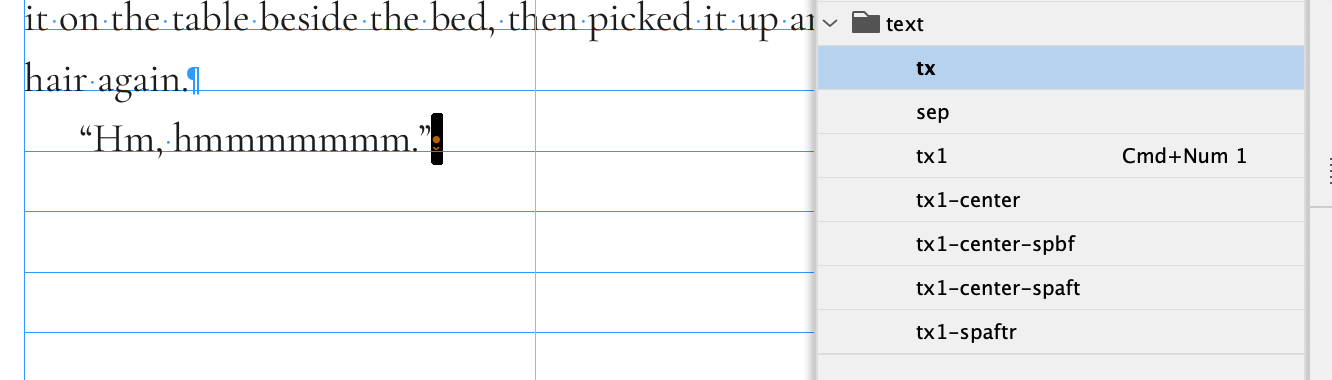
tx of the rest of the paragraph.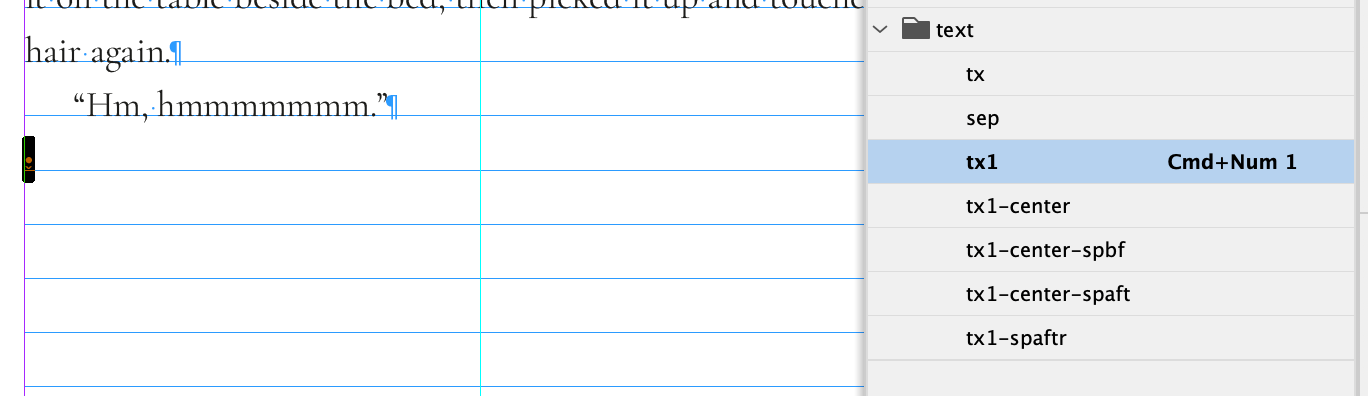
tx1 paragraph style, which is a style that has been tagged to Split in the ebook. This will result in a blank page in the ebook.6 — Add hyperlinks to any links.
I love using this GREP I found on CreativePro to help me find all the links in my file.
Find/Change (GREP):
Find:
(http|ftp)?(s?://)?[@a-zA-Z0-9.-]{1,256}\.[a-z]{1,6}\S*[^ \)\}\]!?.,;:\r(”)(’)]For each link found: Hyperlinks panel > Add Hyperlink > Character Style: None
Why should you set the hyperlink’s character style to None?
You should let the hyperlinks default to whatever the reading systems’ default behavior is. This is the most predictable way to ensure they appear accessibly (with appropriate color contrast). As such, they don’t need character styles attached to them.
Note: my friend Riley Earle also recently informed me that there is actually a feature in InDesign that can help you find hyperlinks (Type > Hyperlinks & Cross-References > Convert URLs to Hyperlinks). I tested this out, and it’s a little laggy/slower than running the GREP, and I’m not sure whether it can find all links. So, I’ll have to test this out some more and maybe use this feature in combination with the GREP above to see if one method catches more links than the other.
7 — Select all unused Paragraph, Character, and Object Styles, and delete them.
This is just to tidy things up in case you don’t need some of your styles. That way, when you go into the Edit Export Tags settings (I’ll go through this in more detail in a later post), you won’t have to sift through a bunch of styles that don’t need to be exported to the ebook.
Handling Parent Pages for Ebook Conversion
If any elements on your parent pages have been unlocked to be live on the page (such as changing the chapter number, or anything you might use live text for), be sure to run through the following steps.
If you converted a parent element to a live element on a page, make sure you either want it to be retained in the ebook (because it will export), or delete it / reapply the parent page (so it will not export).
As long as parent elements haven’t been unlocked on individual pages, they won’t be preserved in the ebook.
For live chapter numbers in running heads/feet (or anything else you might use live text to change), consider doing this instead when typesetting…
Note: if typesetting has already occurred, follow the previous step. But this is a nice tip that you could use in the future when you’re typesetting to better prepare yourself for an ebook conversion and create that lovely, efficient end-to-end workflow.
Highlight a chapter number in the text (make sure this element has a unique style applied to it that’s specifically for your chapter numbers).
Type > Text Variables > Define > Running Header > Edit
Style: choose your chapter number paragraph style
Use: First on Page
You can add Text Before or After, which is handy if the folio is going to go along with the running head, or if you want the running head to appear in square brackets or something like that.
You can also delete terminal punctuation or change the case, if you’d like.
Click OK.
Go to the parent page and insert your cursor where you want the chapter number to appear.
Type > Text Variables > Insert Variable > Running Header > it inserts
<RUNNING HEADER>but if you click on a page within your book, it should pull in the chapter number (or whatever text variable you’ve set up).
This allows for the running heads to easily change without manually manipulating them / unlocking parent page elements. Not only is this better for ebook conversion, but it also reduces the risk of making manual errors during typesetting.
Items You May Want to Delete in the Ebook
Consider deleting print information on the copyright page.
Some ebook developers like to delete print information (such as “Printed and bound in the United States”), since it’s a digital version of the book.
If you want to delete the half title page (or any other page), only delete the text frame(s) on the page, NOT the page itself.
If you delete a page, it will ruin the page list. The page list will no longer correspond to the page numbers in the print book, causing the ebook to not be fully accessible.
Conclusion
Is this checklist a comprehensive list of all the things that need to be in part 1 of an ebook conversion from InDesign to EPUB? Well, no. First of all, there are likely going to be many parts of the process that I post (so part 1 barely scratches the surface of all that you need to consider / clean up in the InDesign file before moving onto the code). Second, I’m not sure if there could ever be such a document, especially as the ebook and accessibility world is constantly changing and improving.
But! I am doing my best to share what I’m learning with others. There are some things that I haven’t shared in this article that I know should likely be included, but I just don’t know enough about the “right” way to do some of those steps to include them here (I know some ways to complete them, but I have a feeling there’s better, more efficient ways, and I’d like to keep these lists as tidy and efficient as possible).
There’s a lot of misinformation out there about ebooks, so I don’t want to add to it just so I can post a monthly newsletter. I want to make sure what I’m sharing is, to the best of my knowledge, true and the best way of doing things right now.
It’s a difficult, tangled mess to sort out the “best” way of doing something, but I’m showing you the best way that’s worked for me so far, and as I continue to learn more, I will share that with you / update this list. If I have made any mistakes, or have not considered something that could pose an accessibility issue, please do let me know.
I owe much of my knowledge about ebooks to Laura Brady, an ebook superstar. She offers training sessions for $75/hr, and it is seriously one of the best business deductions I make. Highly recommend chatting with her if you need some ebook help.
Updates
Resource of the Month
DAISY Accessible Publishing Knowledge Base
Since we’re talking about ebooks this month, here’s a fantastic knowledge base of basically everything you need to know about ebooks. It’s quite dense, and I think I may be one of the only people to be reading this thing all the way through lol (I’m almost finished!), but it is gold if you need to understand all the bits and pieces of creating accessible ebooks.
What I’m Reading
Dandelion Wine by Ray Bradbury (1957)
Books Without Barriers: A practical guide to inclusive publishing (2026)
What I’m Listening To


💿 Opal | Happy Nightmare Baby (1987): paisley underground / psychedelic rock / neo-psychedelia
💿 Ana Roxanne | ~~~ (2019): ambient
💿 Jürgen Paape | So weit wie noch nie (2002): deep house
Thank you for reading Hadley House!
If you enjoyed this post, I’d love it if you could “heart” it. Your support means a lot. Thank you <3
And, in case you missed it…

Need a designer or typesetter? Just want to pop in and say hi? I’d love to talk with you! You can email me at hello@hadleyhendrix.com, or say hello on Instagram / LinkedIn. (^:
Hi, I’m Hadley Hendrix! I’m an Editorial Designer (AKA book and magazine designer) based in Chicago, creating tailored, production-ready designs for print and digital. Creating unique book designs that are stylish and readable is my specialty! I work with publishers, magazines, and authors on interior design, cover design, typesetting, ebook conversions, and print management.