

Converting Multiple Images to CMYK In Photoshop
This is an archived post from Book Design Made Simple.

In October 2026, the website BookDesignMadeSimple.com (founded by Fiona Raven and Glenna Collett) will be closing, and their co-written book will no longer be available for purchase.
While this is incredibly bittersweet news, Fiona and Glenna have generously allowed me to archive their blog posts on Hadley House to avoid having them disappear with their website. You can find all of their archived posts here.
Fiona and Glenna have made a huge impact on my life, teaching me so much about book design and giving me the hope, motivation, and confidence to succeed in this field. I am eternally grateful. It is an honor to learn from them. I think you will feel the same <3
Originally Published: September 11, 2017
By: Fiona Raven
Need to convert to CMYK in Photoshop? Let’s say you’re designing and typesetting a book with lots of images. You’ve finished laying out all the pages, and your last task is to prepare the images for print. All of your images have either been scanned or photographed, and therefore they are all RGB color (not CMYK color, as required by most offset printers). And most images are JPGs, although you might have a few PNGs too.
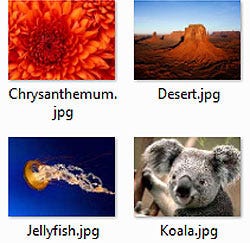
It’s a monumental task to convert each image to CMYK individually. Suppose you have 50+ images, or even 1,500+ images! I found myself in this situation recently, and am sharing with you a quick and easy way to convert all of your images to CMYK at once by batch processing actions in Photoshop. (It sounds complicated, but isn’t.)
Package your InDesign file first
Before any batch processing, you’ll want to package your InDesign file (see page 300 in Book Design Made Simple, or click File>Package and follow the prompts). When you package in InDesign, your InDesign file is copied into a new folder and all linked images are copied into a new subfolder called Links. This way, all your images are in one place. When you convert to CMYK in Photoshop, you’ll be leaving your original RGB images intact in their original locations. (That’s important! If you make any mistakes or change your mind about any images, you’ll always have the originals to go back to.)
How batch processing works
First you’ll record the steps (called actions) that you take to convert to CMYK in Photoshop, and save that series of actions under a name. Then you’ll run the recorded series of actions on all the images in your Links folder at the same time (that’s the batch processing part).
A sample set of actions
First I’ll explain the actions I used on my images, and then I’ll walk you through recording the actions and running the batch process. Here are the actions I used:
Open an image in Photoshop — of course, you’ll need this action!
Convert the image from RGB to CMYK — some digital and POD printers no longer require image files to be converted to CMYK, but if your printer requires CMYK images, you’ll need this action.
Flatten the image — some cameras and scanners save the image on Layer 0 or 1 instead of the Background layer, so flattening the image reduces its file size.
Save the image as a PSD file — PSD is the native Photoshop format (saving as TIF is okay too, but using the JPG format for CMYK files is discouraged because it discards information to make the file size smaller).
Close the image.
These are all simple steps to take in Photoshop, right?
Recording your actions
In Photoshop, open your Actions panel by clicking Window>Actions. You’ll see sets of actions saved there (and you can click any of the arrows to expand a set of actions and view the steps that are included).
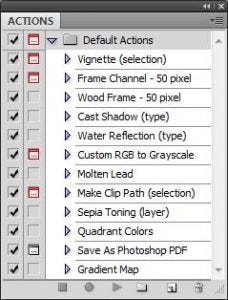
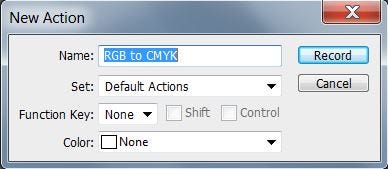
To record your own set of actions, click the fly-out menu at the top right and select New Action. In the New Action dialog box, type in a name for your set of actions, and click Record.
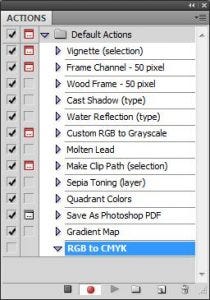
Now you’ll see that your Actions panel has the new name at the bottom, and the recording symbol (the red circle at the bottom) is lit up and recording.
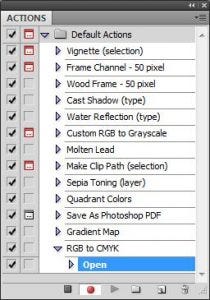
Your first action is to open an image in Photoshop, so click File>Open, navigate to the new Links folder in your InDesign package, select the first image, and click Open. A new action called Open will appear in your set of actions:
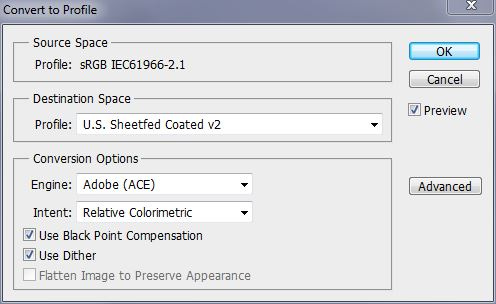
Your second action is to convert the image from RGB to CMYK, so click Edit>Convert to Profile and you’ll see the Convert to Profile dialog box (see screenshot below). In the Source Space section, you’ll see the current RGB color profile of your image. Click the drop-down menu in the Destination Space Profile box, and choose a CMYK color profile. If your printer has provided a color profile, select that one, but if not, you have some choices depending on what kind of paper you are printing on:
for coated paper, choose U.S. Sheetfed Coated v2. Most likely you are printing a color book on matte or glossy paper (both of which are coated), and your pages will be run on an offset sheetfed press. Even for digital printing, this color profile is a good choice, as the papers used are coated.
for uncoated paper, choose U.S. Sheetfed Uncoated v2. Uncoated paper is used for novels and nonfiction books, and rarely for printing color. However, if your color images will be printed on uncoated paper, this color profile is a good choice.
When you’ve chosen an appropriate color profile for your Destination Space, check the boxes as shown below and click OK. You’ll see a new action added to your set called Convert to Profile.
Your third action is to flatten the image, so click Layer>Flatten Image and you’ll see a new action added to your set called Flatten Image. (If the Flatten Image choice is grayed out, it means your image doesn’t need flattening. If all of your images are saved on the Background layer, none will need flattening and you can skip this step.)
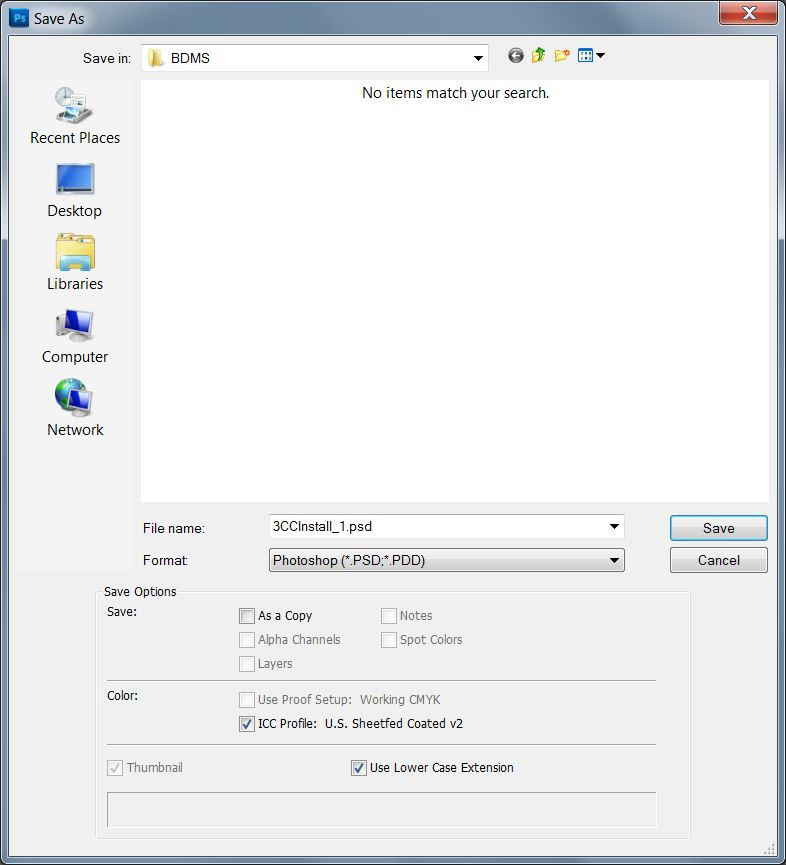
Your fourth action is to save the image as a PSD file. Click File>Save As, then change the Format drop-down box to Photoshop (*.PSD, *.PDD) as shown below, and click Save. Do not change the File Name, just the Format.
Your fifth and last step is to close the image. Click File>Close to close the image.
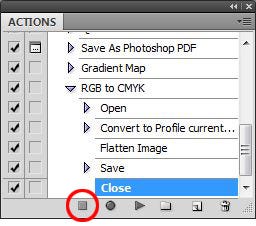
Now you’ll have recorded all five steps, and you’ll see them listed in your RGB to CMYK action. Stop recording by clicking the square icon at the bottom of your Actions panel. Your set of actions is ready to go!
Batch processing your actions
Click File>Automate>Batch to open the Batch dialog box (see screenshot below). In the Play section at the top, select Default Actions, and in the Action drop-down menu, select your saved action RGB to CMYK.
In the Source section, select Folder in the Source drop-down menu. Click the Choose button and find the Links folder in your new package, containing copies of all your images. Check the Override Action “Open” Commands box.
In the Destination section, select Folder in the Destination drop-down menu. Click the Choose button and again find the Links folder in your new package. Check the Override Action “Save As” Commands box.
All the other settings can remain as the defaults.
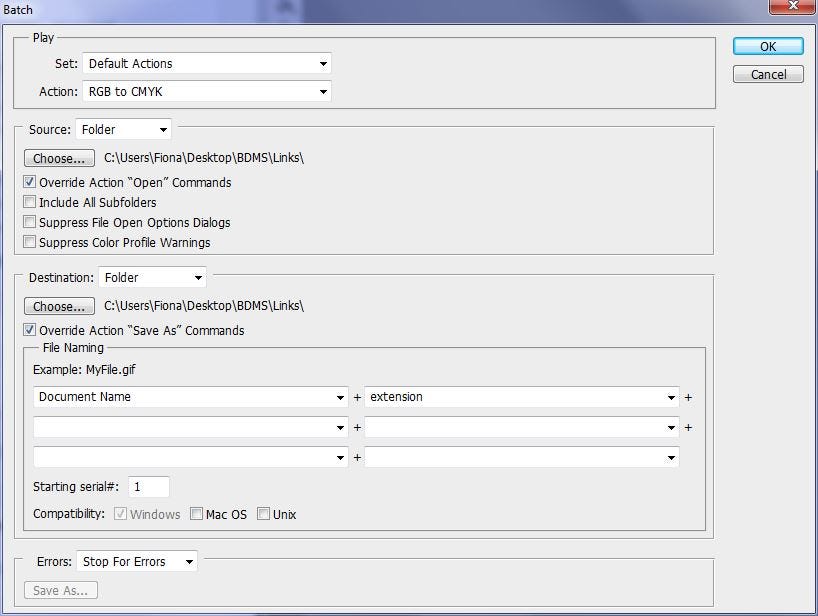
Click OK and watch the magic! You’ll see each image flash onscreen as it is quickly opened, converted, flattened, saved, and closed. A handful of images will take seconds to process, and 1,500 images will take a few minutes.
When the processing is finished, you’ll have two sets of images in your Links folder: the RGB images (JPGs or PNGs) and the CMYK images (PSDs).
Relinking the images in your InDesign file
The images in your InDesign file will still be linked to the RGB images in the Links folder, so you’ll need to relink them to the new CMYK PSD files.
Unfortunately, I don’t know of a shortcut for relinking your images to a new file name. (Even though your images were saved with the same name, the file extension changed and therefore InDesign views them as having a completely different file name.)
Open the InDesign file in your new package and open your Links panel by clicking Window>Links. Select the first image in your document using your Selection Tool. You’ll see that the image file name is highlighted in the Links panel, and it’s the RGB file name with the JPG or PNG file extension.
To link your selected image with its new CMYK PSD file, click the Relink icon at the bottom (circled below), browse for your new PSD file in the Links folder, then click Open.
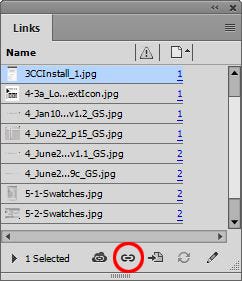
You’ll need to relink each image until all the images in the Links panel have the PSD file extension. Then you’re done! And when all the PSD files are linked, you can simply delete the JPG files out of your Links folder since those were copies anyway.
I hope you find using batch processing to convert to CMYK in Photoshop useful! Honestly, it takes longer to explain than to actually do. And once you have the RGB to CMYK action set up in Photoshop, it’s a breeze to batch process any folder full of images.